
NOTES BEFORE GOING LIVE:
- Clean up functions.php my_theme_enqueue_styles per the instructions in the file.
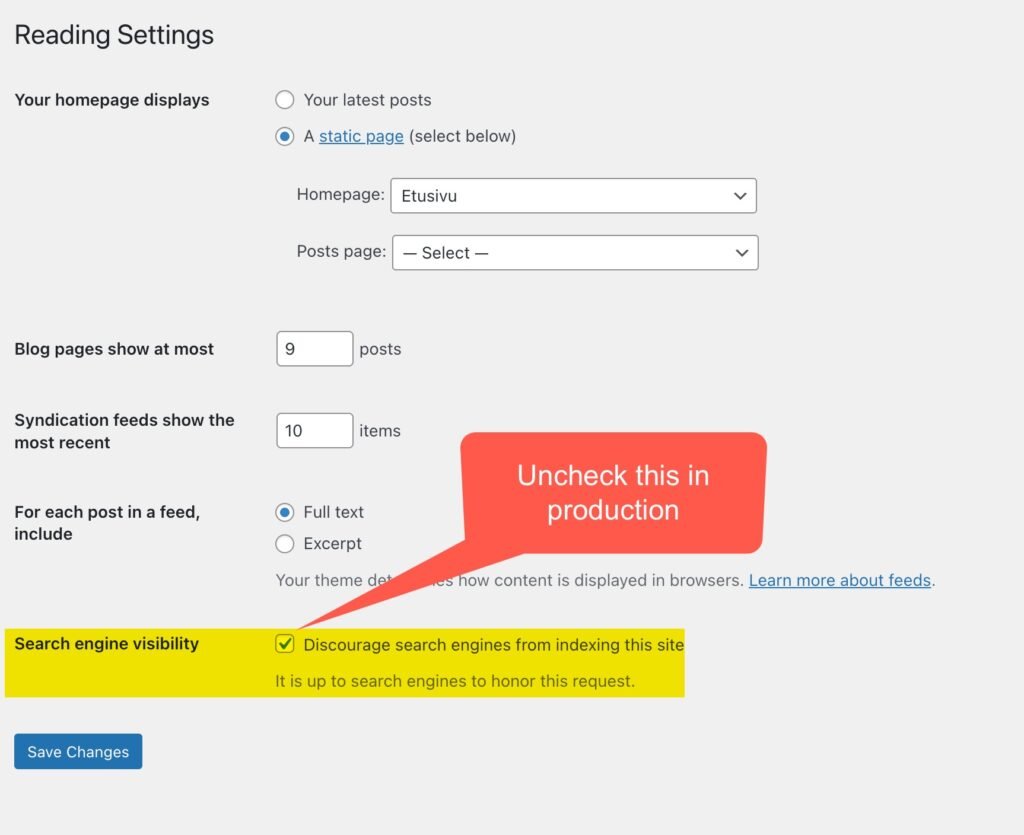
- Be sure search engines are not blocked
- Set posts per page to 9 in settings>reading
- Be sure links in header and footer are correct
- Be sure search is translated and working
- Disable “Page Index” page (make it a draft for example)
Reference: before you go live, allow search engines to crawl the site:
Generally speaking CSS is in Styles.css
Some styles are in the Styles folder so they can be used in the block settings panel. Some of those are not used so they will be removed eventually.
Migration to empty site
- Use Duplicator plugin to download an archive of the source site and an installer that is simple a PHP script. Be sure to filter out any add-on sites (like help.ammasites.org).
- Upload the downloaded archive and installer file to the root of the empty destination site
- Make a clean database on the destination site and know the credentials (try to avoid overwrite method)
- Run the installer script by simply visiting its URL. There you put in the DB credentials. Keep “localhost” as the host name. The installer validates the credentials and then you can run it (try to avoid overwrite method)
- Login to the WP admin and it will automatically remove all installer files and the archive
- Delete “My Patterns” content if needed
- Move draft pages to trash as needed
- Add correct logos to header/footer and link them to home page
- Be sure Media is not set to upload into folders
- Set posts per page to 9 in settings>reading
- Delete extra users and set correct roles as needed
- Run BSR for src=”https://ammasites.org and src=”https://ammasites.org
- Email new country contact(s) the password for tempadmin user and tell them to create a new admin user and delete that one. Also to change the site admin email address.
ChatGPT about migrating a site/domain to a new server.
The only thing I would do differently is test the hosts file change once first (ChatGPT suggested first in one place but then moved it to step 5 in final workflow).
NEW MOBILE NAV NOTES – FOR BHUVANESH MOSTLY
- Theme 3.9.9 should support both the old and new mobile navigation. Specifically the style.css and the admin-ui-style.css, plus the icons in the theme.
- New nav follows a similar idea as the mega menu, so there is a new last block in “mega content” group for the mobile nav (must be the last block). This will need to be populated with links for each country. Amma Sample Site has an example.
- The header in each country site needs some additional JS in the HTML block. I tried to externalize it but it never worked that way, probably a timing/availability problem that I’m not going to worry about (it’s a tiny script).
- In header, link to icons in theme ( https://ammasites.org/wp-content/themes/amma-theme/assets/images/icons/icon-search-violet-svgomg.svg and https://ammasites.org/wp-content/themes/amma-theme/assets/images/icons/hamburger.svg )
- Follow pattern for new header in Amma Sample Sites because icons are now in group blocks with classes and padding around icons has changed.


HISTORICAL THEME STUFF FOR REFERENCE ONLY. MOST PEOPLE SHOULD IGNORE THIS.
This is the theme structure as of V3.8. Probably has changed since this.
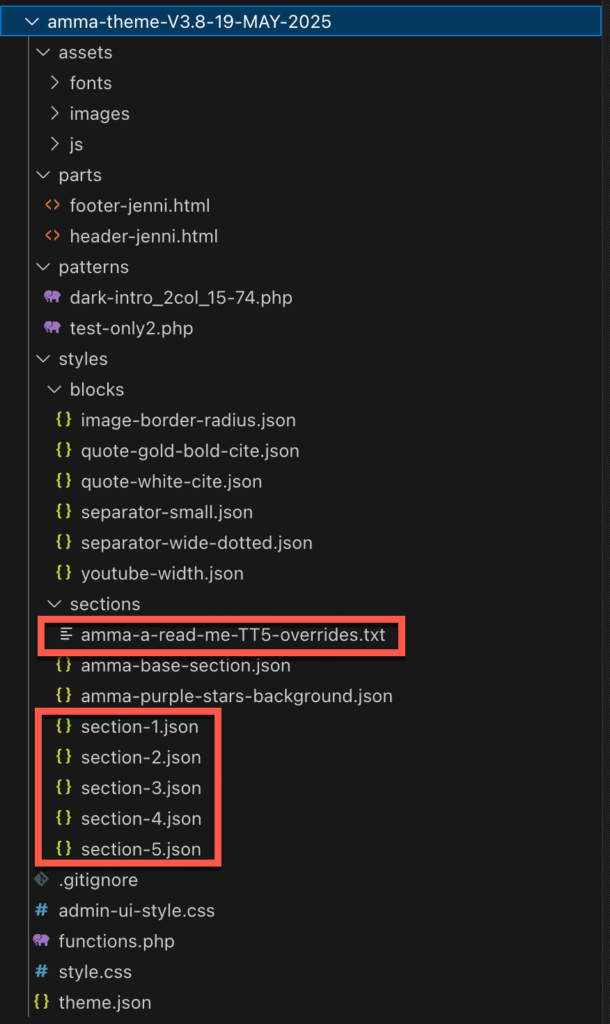
Contents of the Read Me file in Sections:
The section-*.json files (e.g., section-1.json to section-5.json) in this folder are minimal JSON files that override the corresponding files in the Twenty Twenty-Five (TT5) theme’s styles/sections folder.
Purpose: These files prevent TT5’s block styles (“Style 1” through “Style 5”) from appearing in the WordPress editor’s Block Settings panel for core/group, core/columns, and core/column blocks. Each file is empty or minimal (with blockTypes: [] and styles: {}) to ensure the styles are not registered.
Maintenance: If TT5 updates its styles/sections folder (e.g., adds new styles like section-6.json), create corresponding empty/minimal JSON files here to maintain the override.
Custom Styles: Custom block styles are defined in the Styles folder and are unaffected by these overrides.
Migration to empty site
Bhuvanesh only, for copying sites.
Step 1: Use WP-Optimize plugin to completely clean, optimize and repair the DB on the source site (removes all post revisions which is awesome).
Step 2: Use Duplicator plugin to download an archive of the source site and an installer that is simple a PHP script
Step 3: Upload the downloaded archive and installer file to the root of the empty destination site
Step 4: Make a clean database on the destination site and know the credentials
Step 5: Run the installer script by simply visiting its URL. There you put in the DB credentials. Keep “localhost” as the host name. The installer validates the credentials and then you can run it.
Step 6: Login to the WP admin and it will automatically remove all installer files and the archive
Step 7: Delete “My Patterns” content if needed