Header & Footer
See here for Breadcrumb and search instructions.
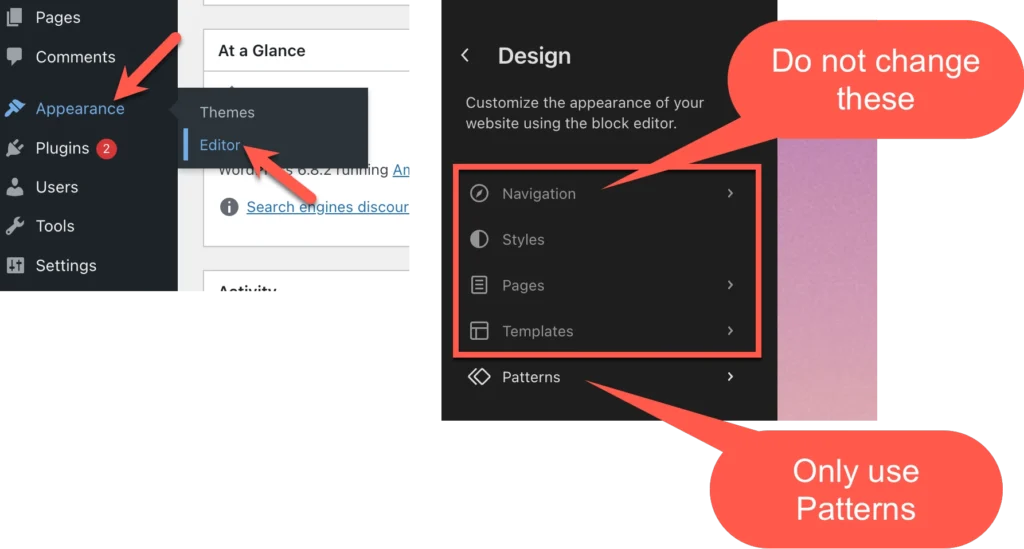
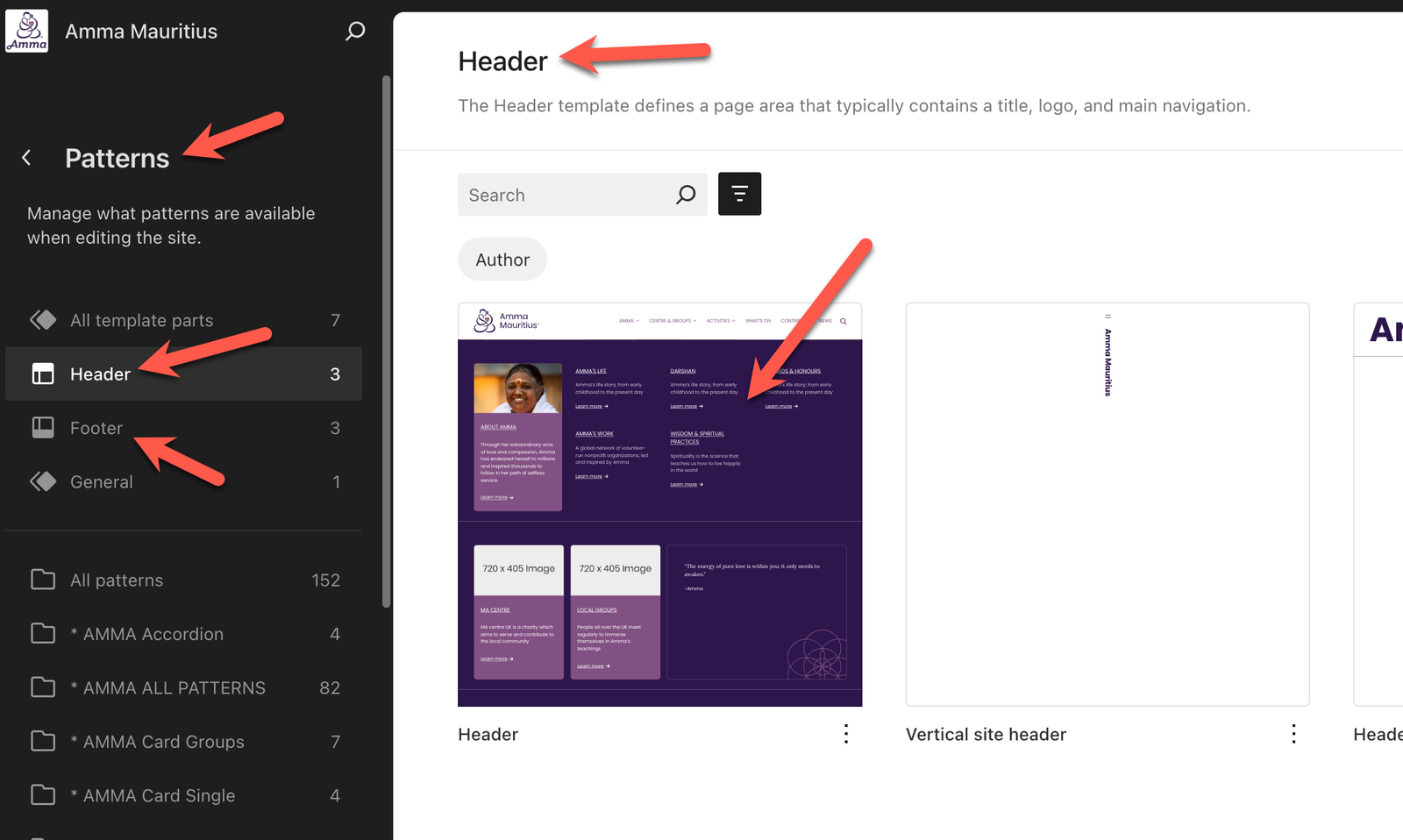
To edit the header or footer, go to Appearance>Editor then click Patterns and then Header (or footer).
In the Editor, be sure to only work with the patterns section.
Once inside the Header, the top menu is a Navigation Block that contains a Menu. You can change text and links, or remove items easily, but adding items requires more thought because the menu is already full. Please contact Bhuvanesh or Ahalya if you have questions or need help.
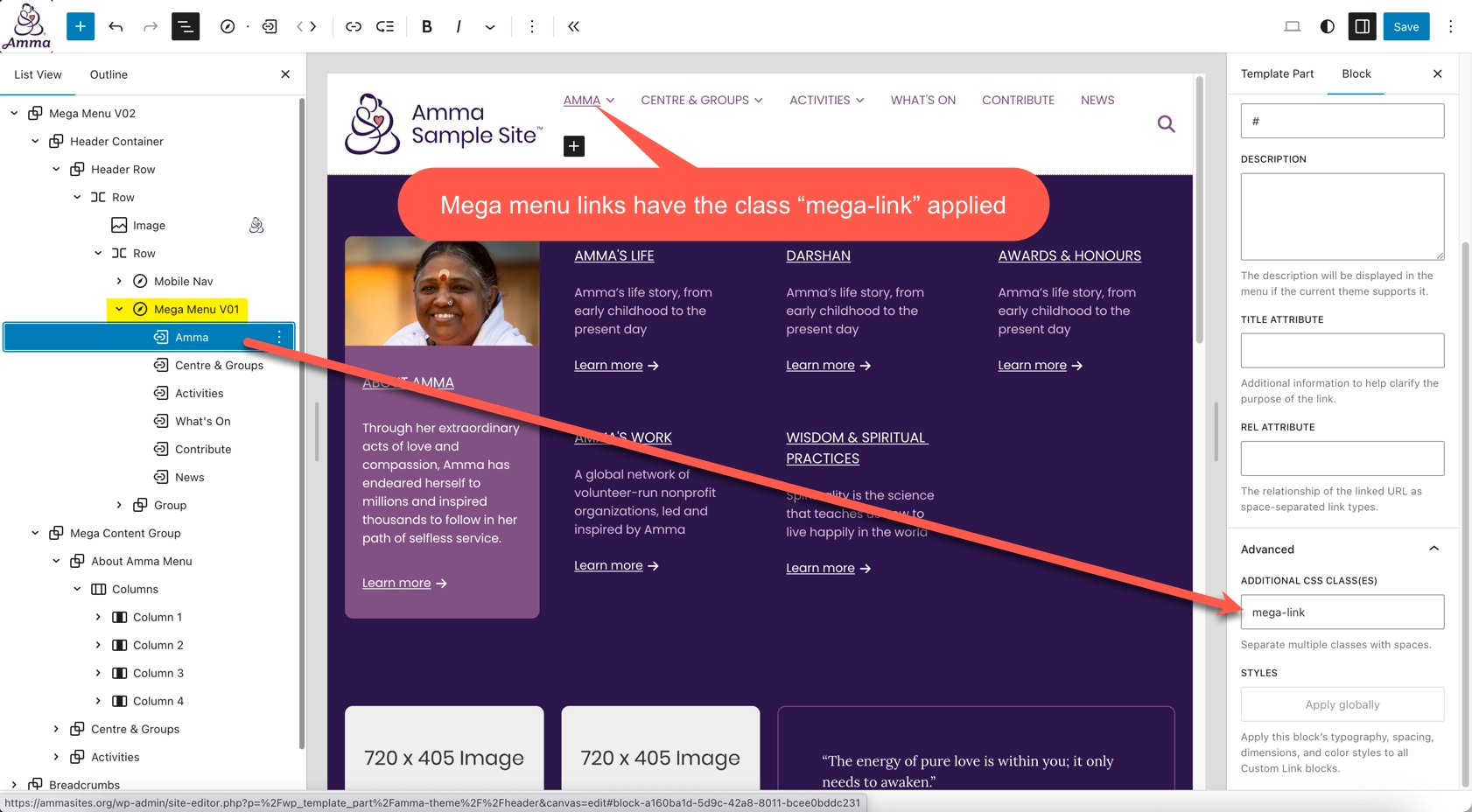
Note that the first three items open and close the mega-menus, which can be edited like other blocks. If you need to change the structure (i.e. add or remove an entire mega menu) you may need help. See more info below, and please contact Bhuvanesh if you need help.
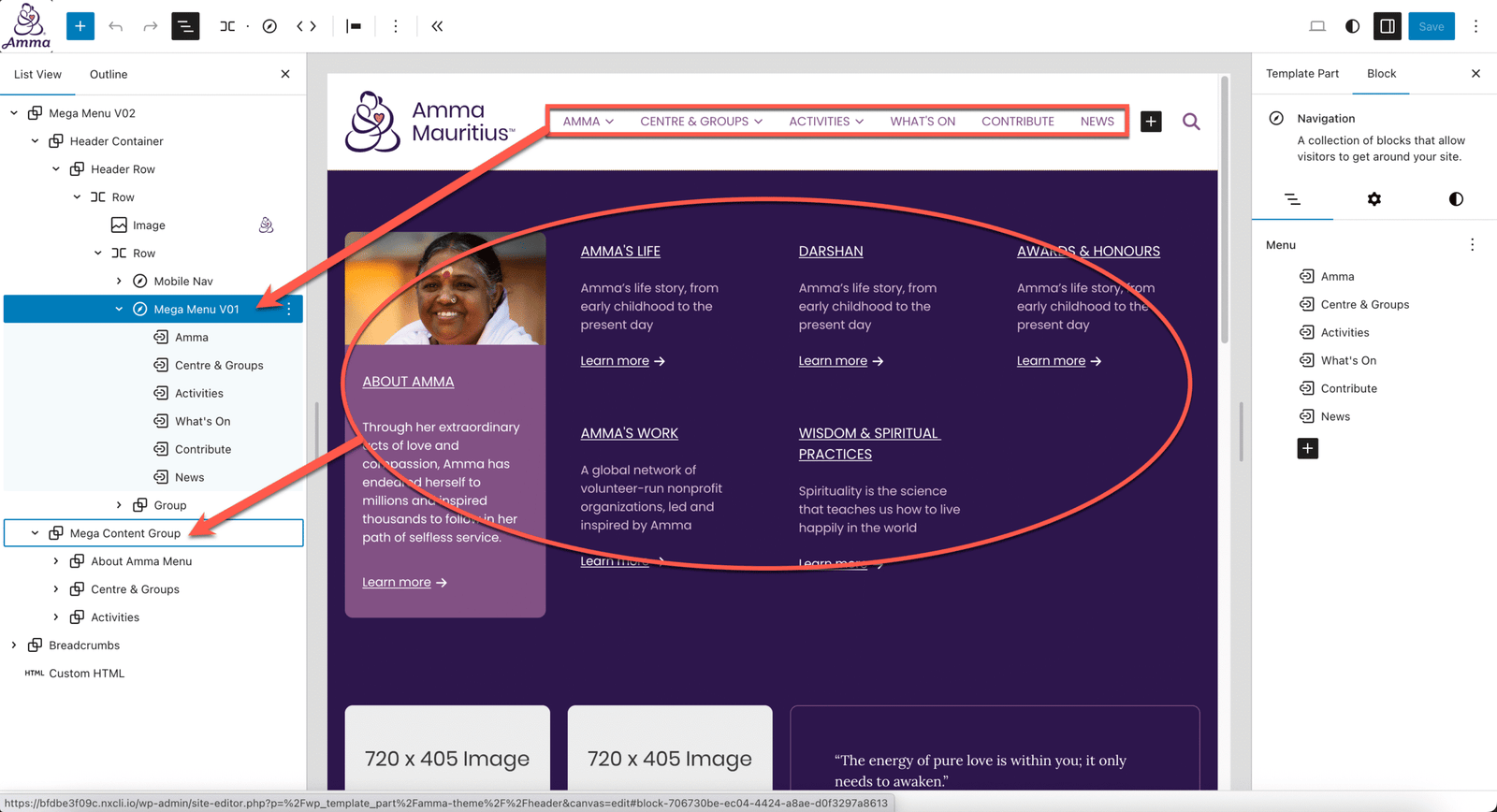
The easiest way to add or change a menu item is to duplicate an existing item and then modify it. Here are some technical details. The links in the TOP menu will open mega menu content when these conditions are met:
- The top menu item (link) has a class of “mega-link” applied to it.
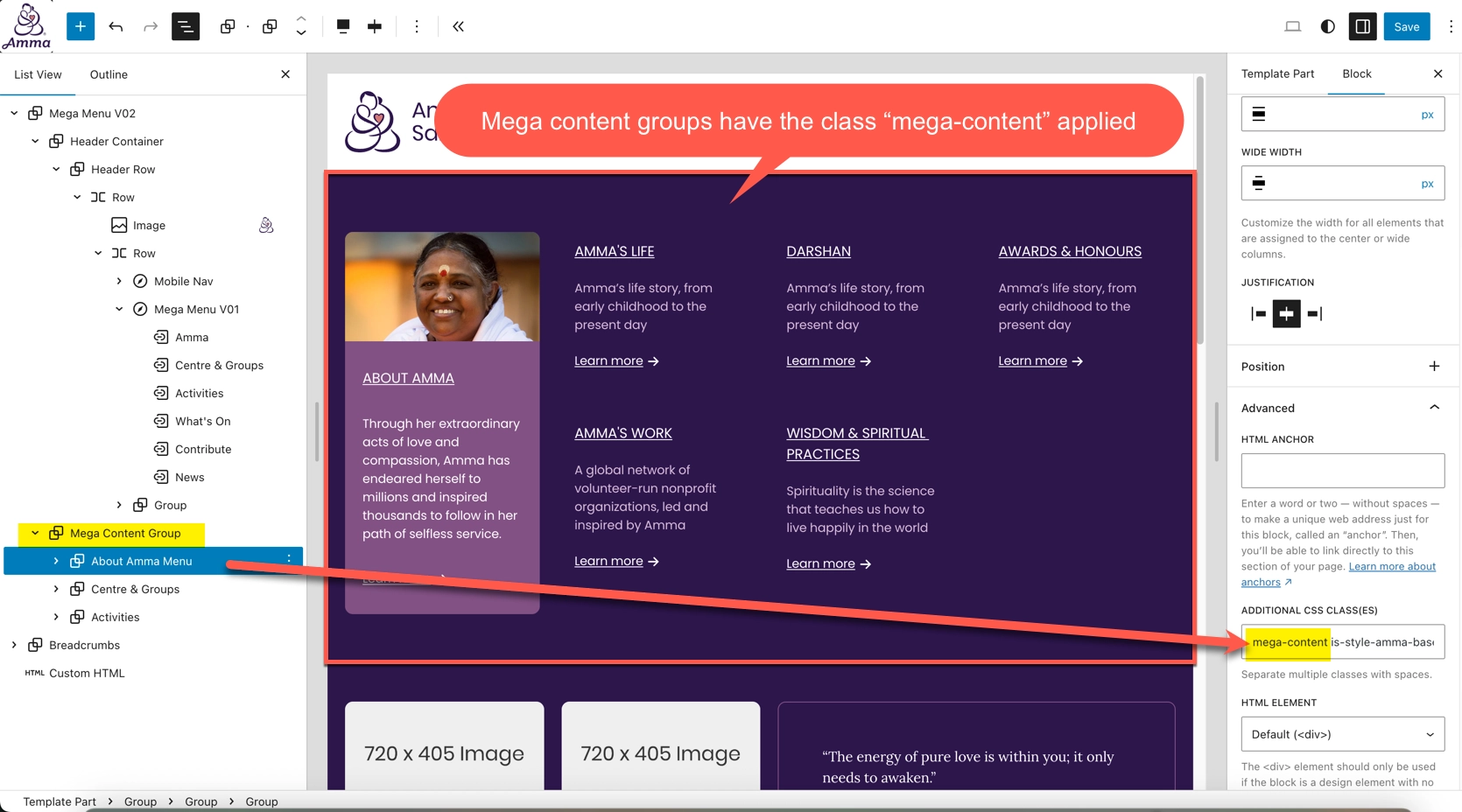
- There is a corresponding “Mega Content Group” item that contains the contents of the mega menu itself and it has the class “mega-content”. (It should have the additional class “is-style-amma-base-section-1” to get the correct padding, but that’s not functionally required.)
- The “Mega Content Group” items MUST be in the same order as the the top nav. (i.e. the first top nav mega menu link will find the first mega content group, etc.). The last item will be the mobile nav (see further below).
Mobile Nav
IMPORTANT: Requirements for the mobile nav have changed in theme version 3.9.9. If you have an older theme please contact Bhuvanesh for an upgrade before working with the mobile nav.
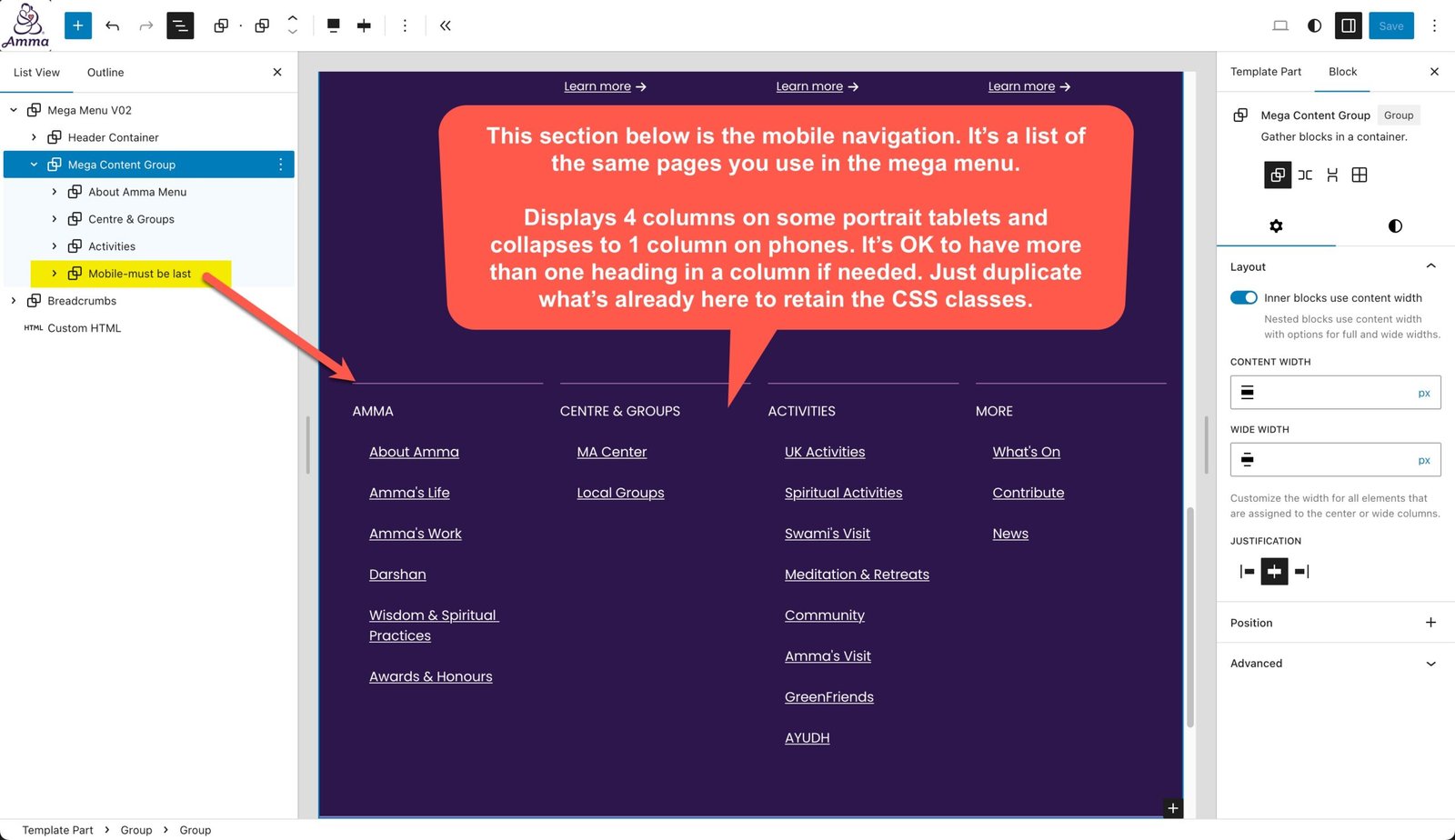
The mobile nav must be the last item in the Mega Content Group. It is a four-column list of the exact same page links you added in the mega menu above.
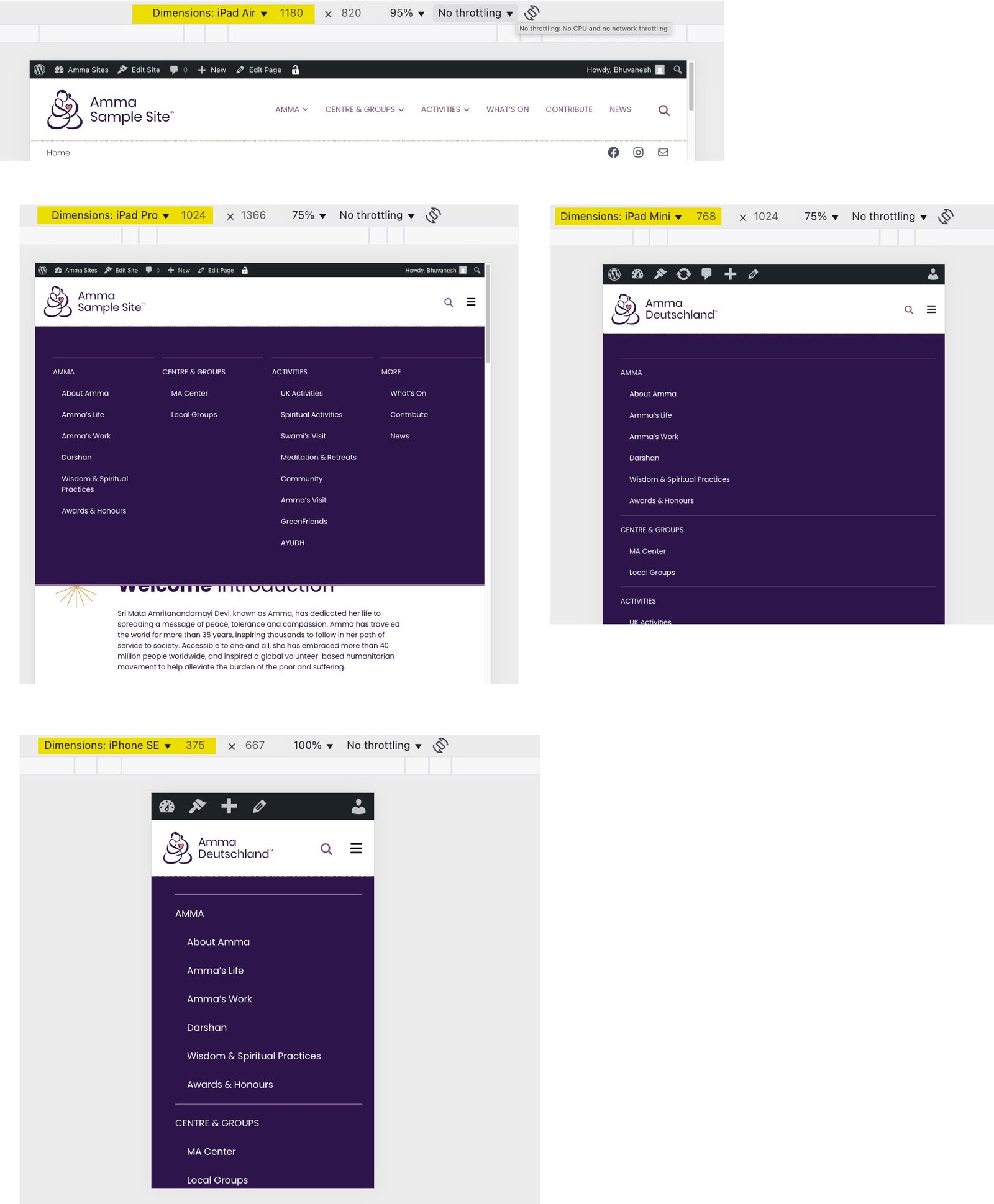
On most tablets in landscape mode you will see the regular mega menu. Some tablets display four columns in portrait mode and some display only one column. Phones will always display as one column. It’s OK to have more than one heading in a column if needed. Just duplicate what’s already here to retain the CSS classes. Contact Bhuvanesh if you need help.
Here are some examples:
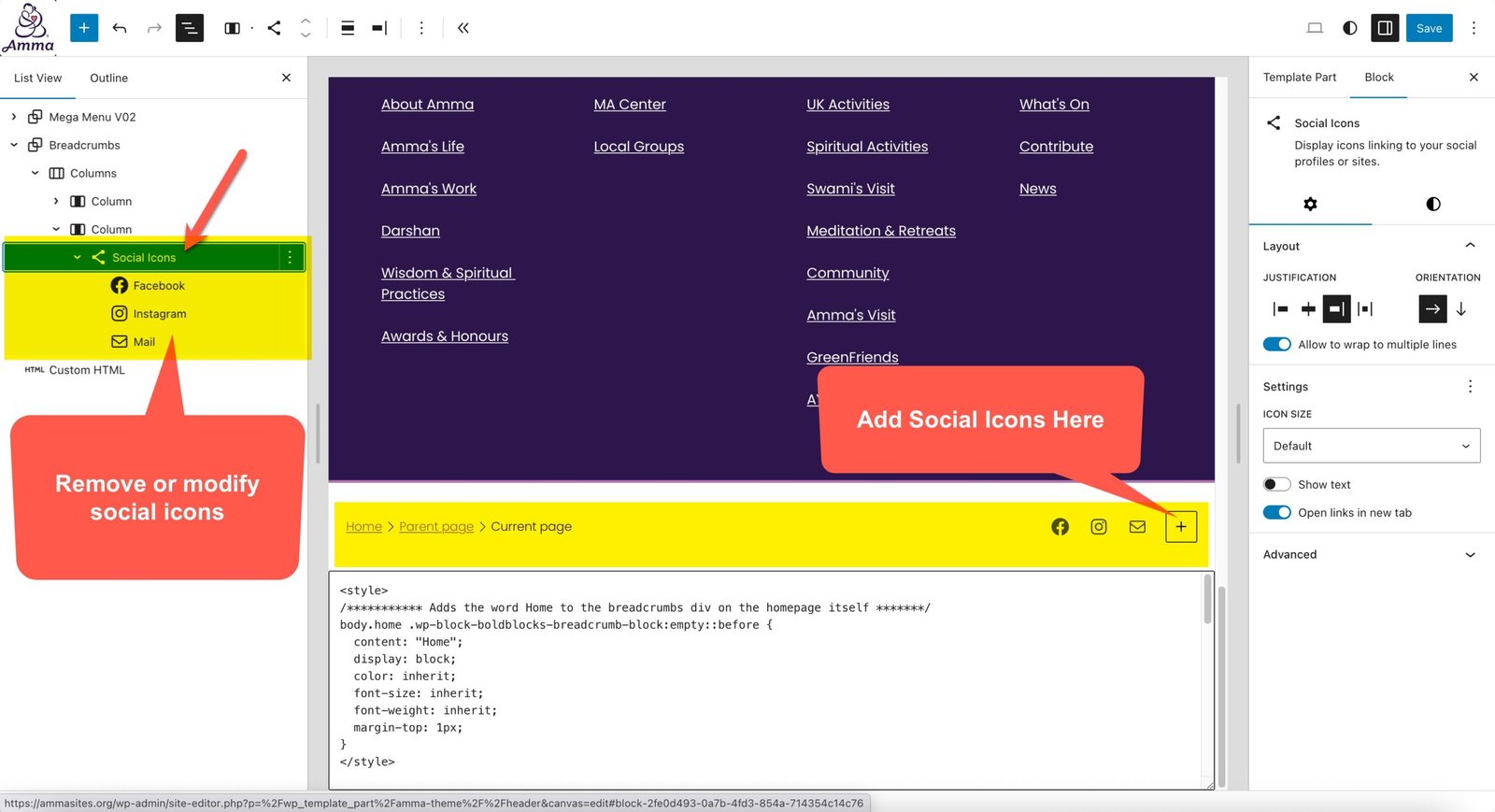
Social Icons
Access Social Icons in the same place as the Breadcrumbs (below the mobile nav).